JoySchooler + Canvas
Add it from inside the module.
Your district installs JoySchooler once. After that it is in the Canvas assignment picker, the module editor and the rich content editor — you add a lesson series without leaving the page you were on, and its gradebook column is already there.
- Who sets it up
- A Canvas admin, once, for the whole district.
- How long
- About fifteen minutes, once
Start to finish
From nothing to a class that runs itself.
Install
One developer key, one district.
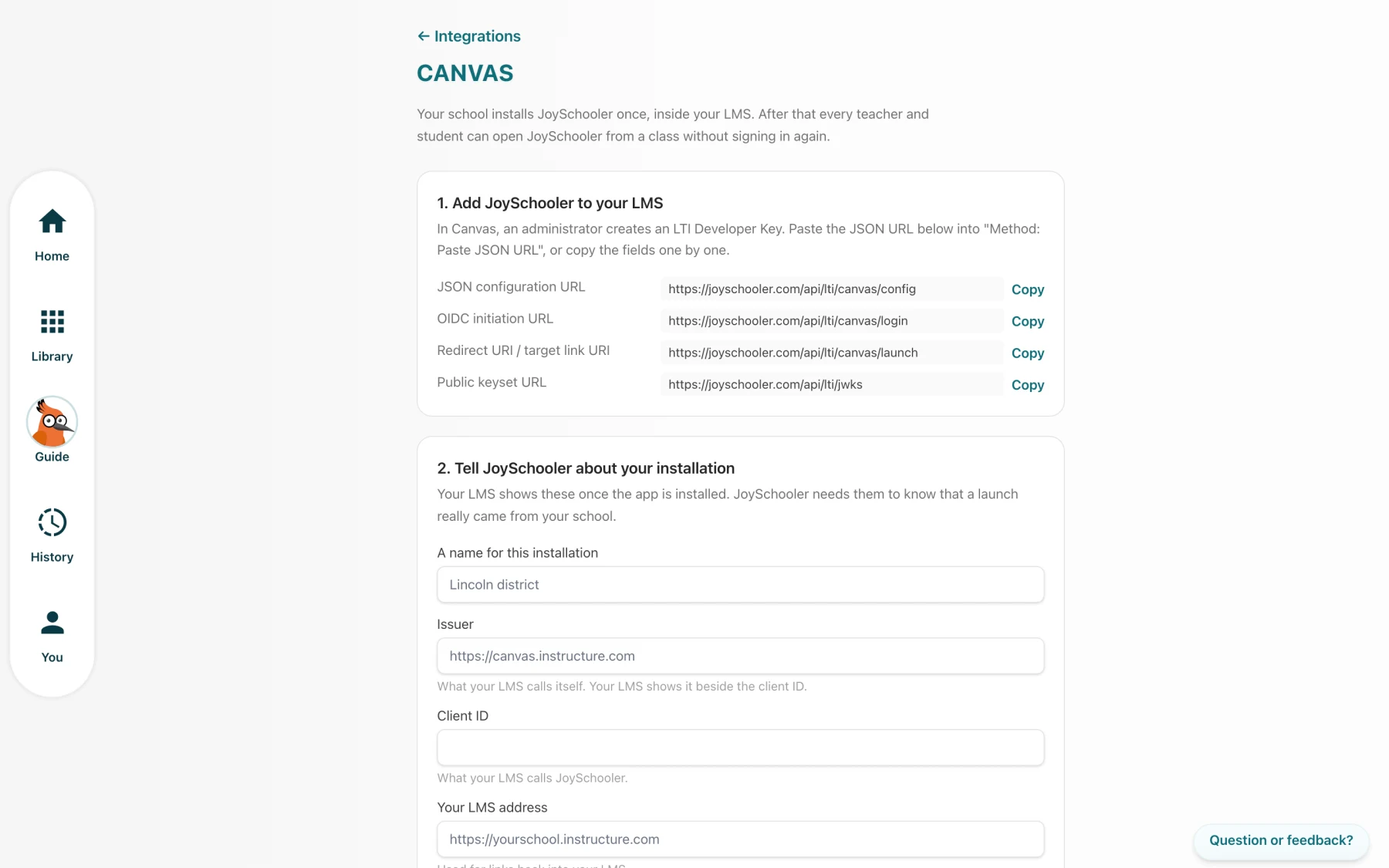
Your Canvas administrator adds JoySchooler as an LTI key from a single JSON URL and turns it on. Nothing else is asked of anyone — no per-teacher connection, no consent screen, no tickets.
Add
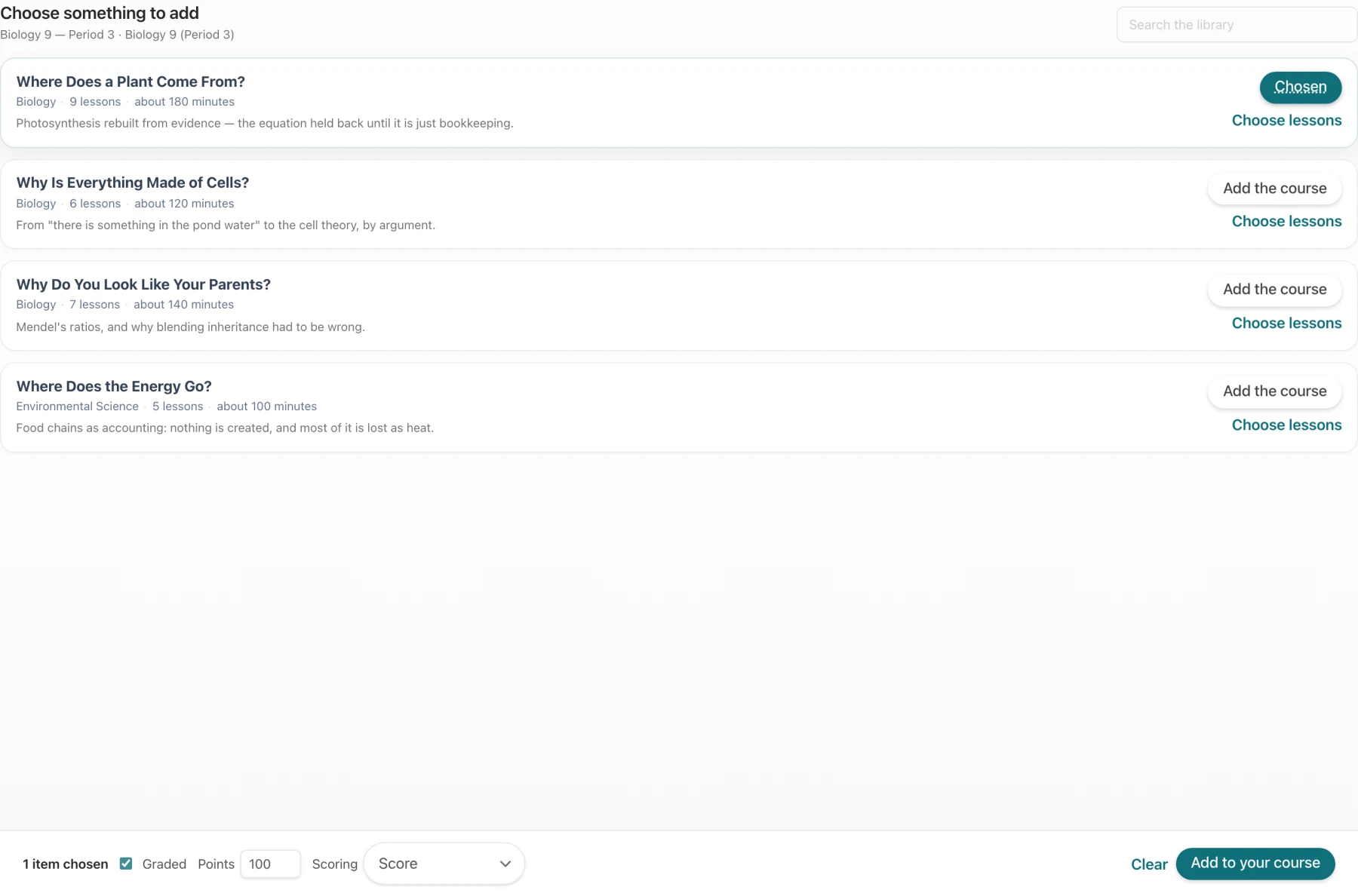
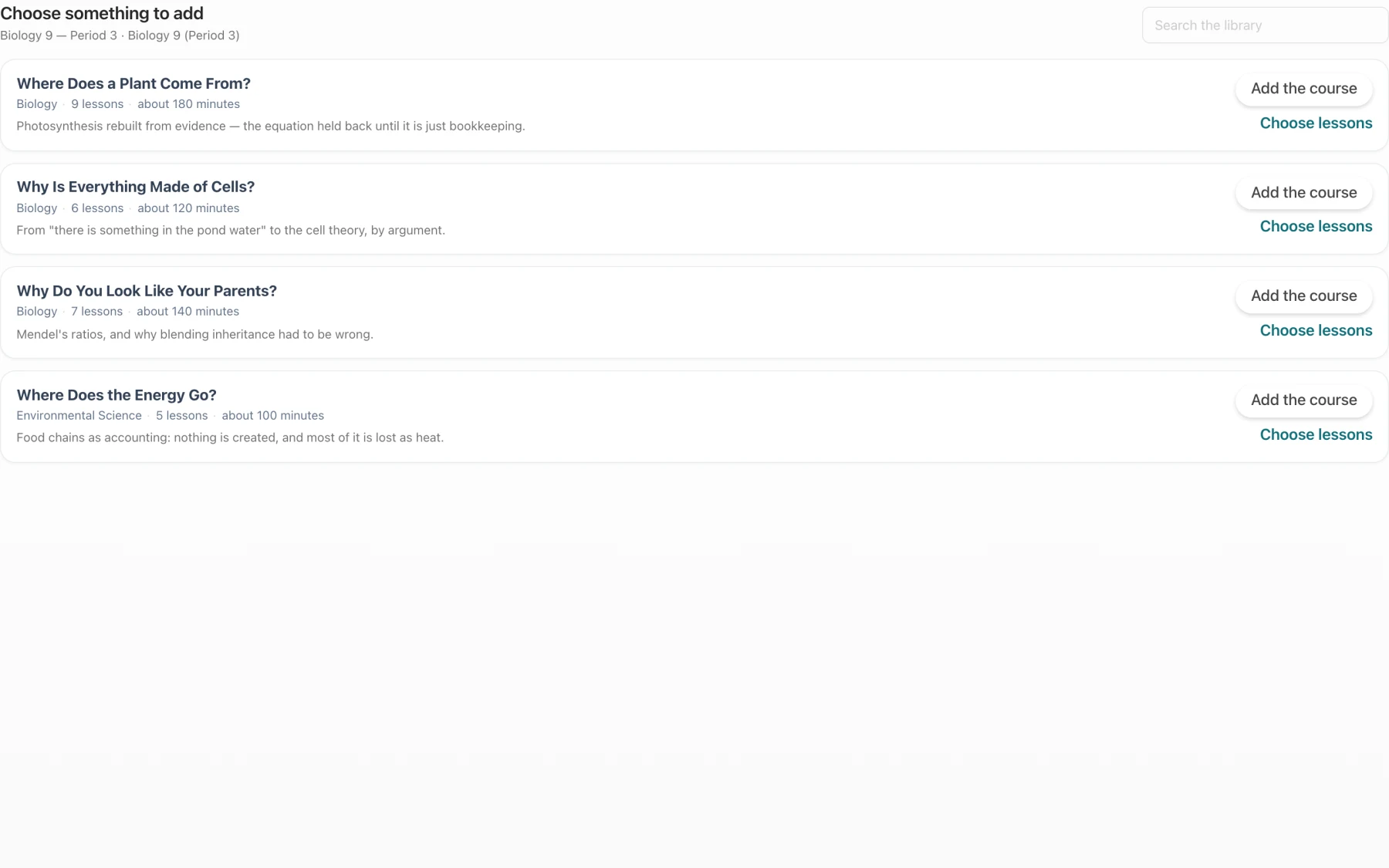
It is in the picker you already use.
Editing a module or an assignment, choose JoySchooler. Your lesson series are listed with what each one covers and how long it runs. Add the whole series, or pick the lessons you want.
The aha
A six-lesson series becomes six graded items.
Add the series and Canvas gets six assignments, each separately dated, separately graded and separately resumable — which is what a teacher means by "add the series". One assignment covering six lessons is not.
Students
They click the assignment. That is all.
No account to make, no code to type, no second password. Canvas says who they are, JoySchooler opens their work, and they carry on where they left off.
Grades
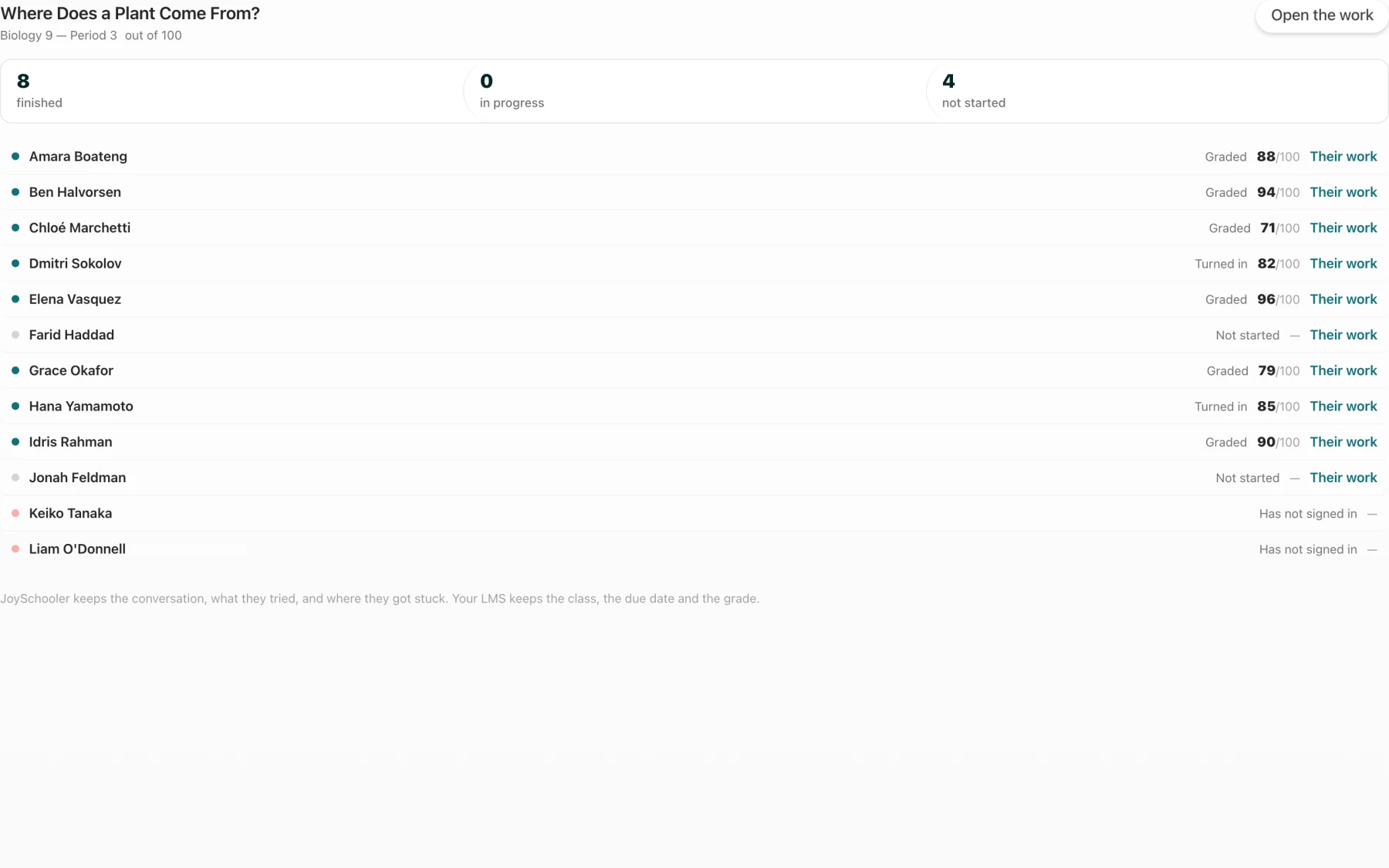
Straight into the column Canvas made.
The score lands in the gradebook column that came with the assignment. Open SpeedGrader and JoySchooler is right there in the panel, showing you how that learner reasoned — not just what they scored.
Watch it happen
The whole thing, in under a minute.
Under a minute: the install, the picker inside Canvas, and the gradebook filling in.
Only here
Copy the course. It still works.
Copy last year's Canvas course into this year's shell and every JoySchooler assignment comes with it — as a fresh instance. The content, the points and the grading setup carry across. Last year's attempts, completions, scores and students do not. That is the whole reason the mechanism exists.
Everything it does
The whole list, including what it cannot do.
These are the same capability flags the product itself reads. If one is off here, the control for it is not shown in JoySchooler either — a form that offers something the LMS cannot honour is worse than one that offers less.
Bring your classes in optional API key
Pick the sections you teach and JoySchooler makes a class for each one.
Bring your students in
The roster arrives with them. No class codes, no spreadsheet, no typing names.
Students just sign in
A learner signs in with the address their school already gave them and lands in your class with their work waiting.
Post work from JoySchooler optional API key
Assign a lesson series here and it appears as an assignment there, with a link that opens the work.
Assign from inside your LMS
Add JoySchooler to a module or an assignment without leaving the page you were already on.
Grades come back on their own
A finished conversation is assessed, and the score lands in your gradebook column.
Release grades to students
Choose whether a score is visible to the learner or held until you say so.
Grades only you can see
A score written where the learner cannot see it until you release it.
See who has turned in
Finished, in progress, not started — per learner, next to their score.
Put it in the right place optional API key
Choose the topic or module the assignment belongs to.
Assign to named students optional API key
Give a lesson series to four learners rather than to the whole class.
Save it as a draft optional API key
Set the assignment up now and publish it when you are ready.
Post it at a set time
Write it tonight, let it appear at nine tomorrow.
Live roster updates
A student added to your class shows up here within seconds, not at the next sync.
Survives a course copy
Copy last year's course and every JoySchooler assignment comes with it — clean, with none of last year's attempts or grades.
Runs inside the LMS
Students do the work without leaving the page. You review it there too.
Worth knowing
What we would tell you on the phone.
- Canvas posts or hides grades per assignment through its posting policy, so there is no teacher-only draft grade the way Classroom has one. JoySchooler does not offer one rather than promising something it cannot keep.
- Canvas has no "publish at nine tomorrow", so a scheduled post is expressed as availability instead.
- Canvas pushes no roster events to a tool, so the roster is refreshed on a schedule and whenever somebody launches, rather than the instant it changes.
- Listing your Canvas courses from inside JoySchooler, and creating assignments from here rather than from there, need an optional developer key with a client secret. Without it everything above still works — you add JoySchooler from inside Canvas.
For whoever runs your systems
Everything your IT person needs, on one page.
An admin pastes one JSON URL into a Canvas Developer Key, turns it on, and copies four values back into JoySchooler. The setup guide has the exact screens, the exact values to paste, every permission we ask for and why, what we store, and the four things that go wrong.
Side by side
If your school runs more than one.
| Capability | Classroom | Canvas | Schoology |
|---|---|---|---|
| Bring your classes in | Yes | Yes | Yes |
| Bring your students in | Yes | Yes | Yes |
| Students just sign in | Yes | Yes | Yes |
| Post work from JoySchooler | Yes | Yes | Yes |
| Assign from inside your LMS | No | Yes | Yes |
| Grades come back on their own | Yes | Yes | Yes |
| Release grades to students | Yes | Yes | Yes |
| Grades only you can see | Yes | No | No |
| See who has turned in | Yes | Yes | Yes |
| Put it in the right place | Yes | Yes | Yes |
| Assign to named students | Yes | Yes | Yes |
| Save it as a draft | Yes | Yes | No |
| Post it at a set time | Yes | No | No |
| Live roster updates | Yes | No | No |
| Survives a course copy | No | Yes | Yes |
| Runs inside the LMS | Yes | No | No |
Questions
The ones teachers actually ask.
- What does JoySchooler get access to?
- Three things, and nothing else: the roster of a course somebody launched it from, the gradebook column for its own assignments, and the score in that column. It cannot read your other coursework, your other courses, or anything a launch has not handed it.
- Do teachers have to connect anything?
- No. The install is the grant. A teacher's first launch is also their sign-up, and a student's first launch is theirs.
- Is there a long-lived credential to steal?
- No, and this is the nicest property of the LTI half. There is no stored password or refresh token for your Canvas: every call is authorised by a token minted for that call and thrown away an hour later.
- Does it work in SpeedGrader?
- Yes. The submission-review placement opens the same panel the class view uses, scoped to the one learner you are marking.
- We are self-hosted / we have several Canvas instances.
- Each installation is registered separately, with its own issuer, client id and URLs. Canvas is per-installation by design and JoySchooler treats it that way — nothing is shared between districts.
Your classes are already there. Bring them across.
Every lesson is a one-to-one Socratic conversation: JoySchooler asks the questions, the learner does the reasoning, and you read how they got there.