JoySchooler + Google Classroom
Your classes, already here.
Connect Google Classroom and every section you teach — with every student on it — is in JoySchooler in about a minute. Assign a lesson series, and it appears in Classroom where your students already look. Grades come back on their own.
- Who sets it up
- A teacher. One click, no ticket, no admin.
- How long
- About a minute
Start to finish
From nothing to a class that runs itself.
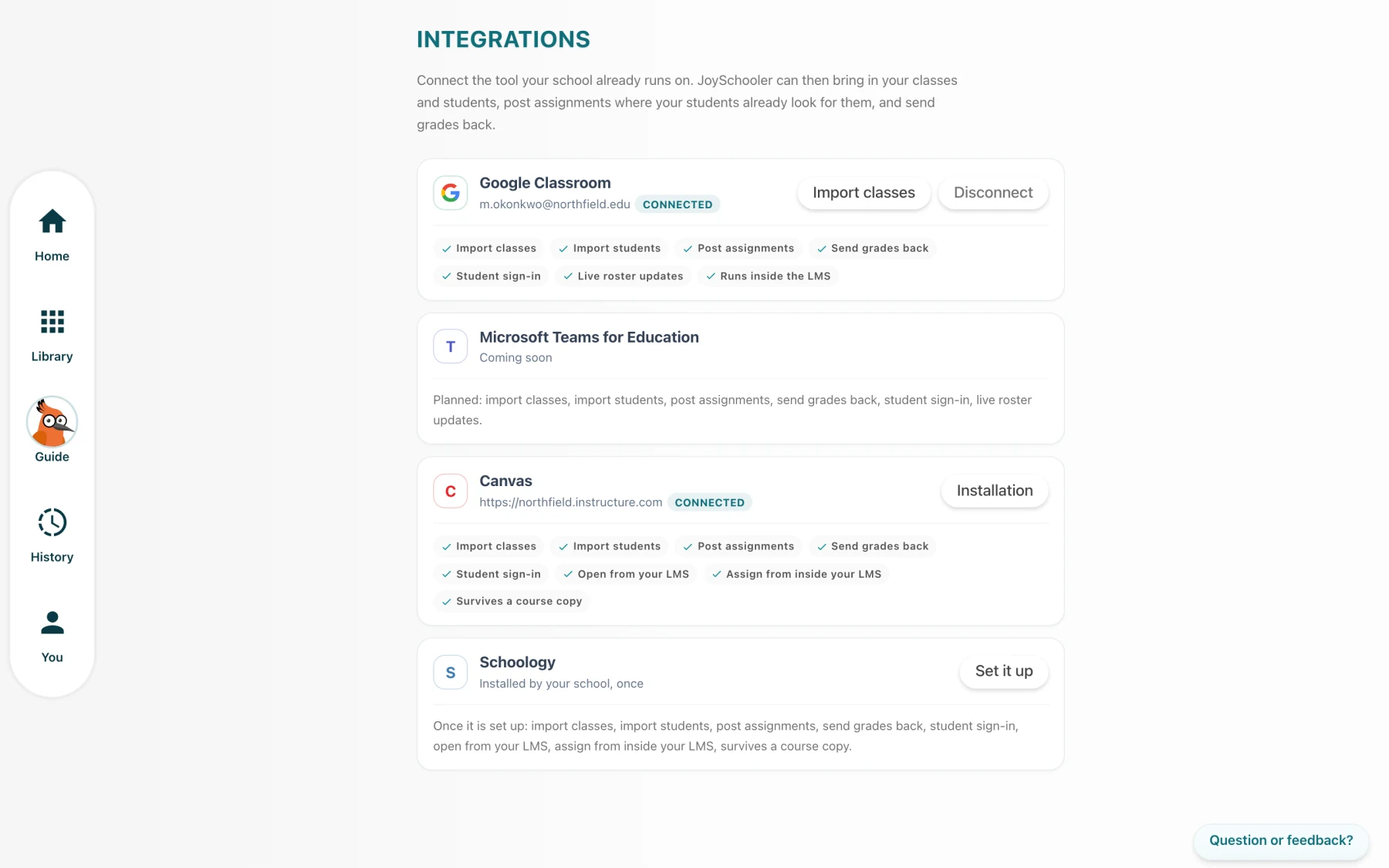
Connect
One button, and your Google account.
Account settings → Integrations → Connect. Google asks what JoySchooler may do; you say yes. Nothing is imported yet, and nothing is shared with anyone.
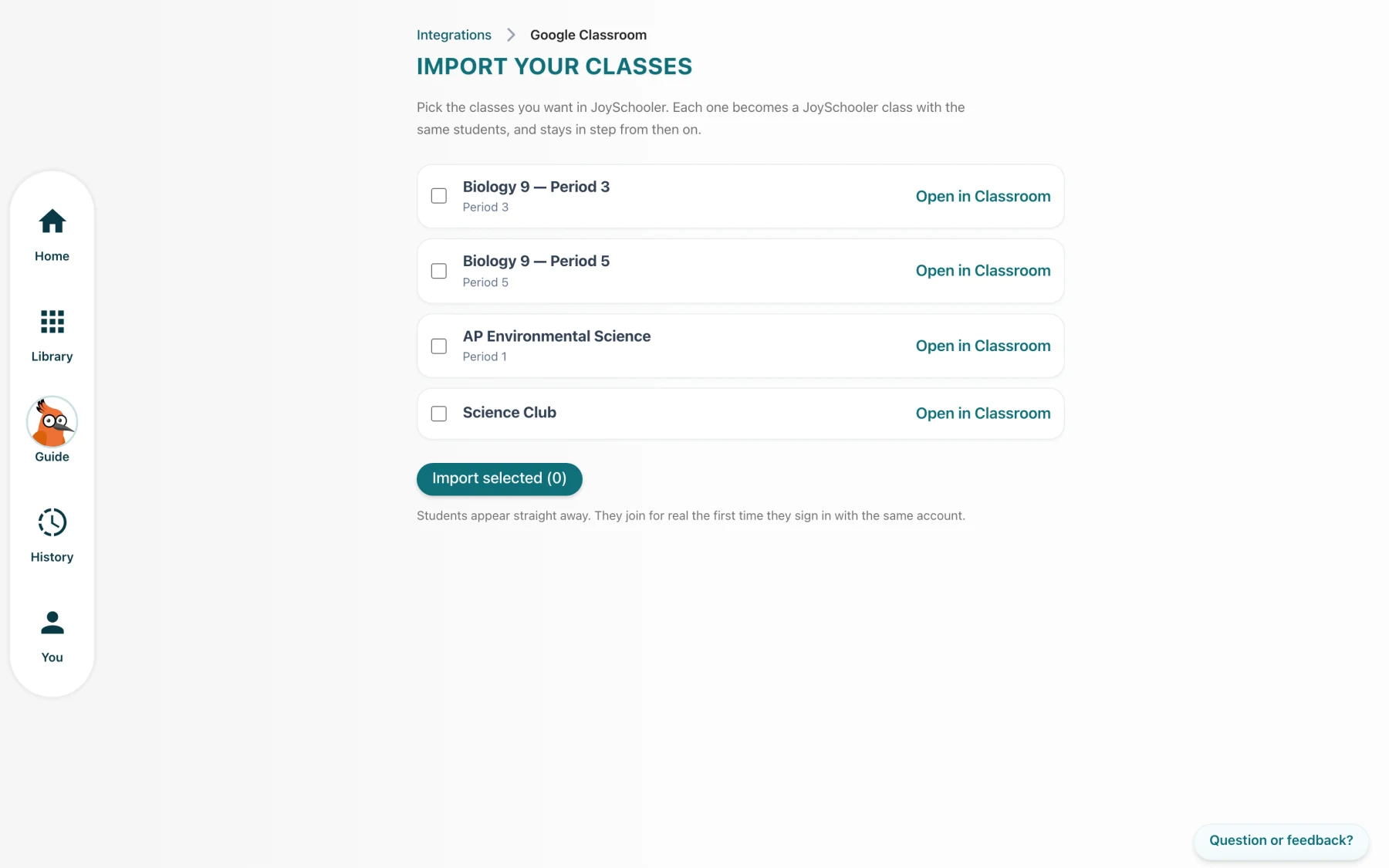
Import
Tick the classes you teach.
Your Classroom courses appear with their sections and how many students are on each. Tick the ones you want. JoySchooler makes a class for each, with the roster already in it.
The aha
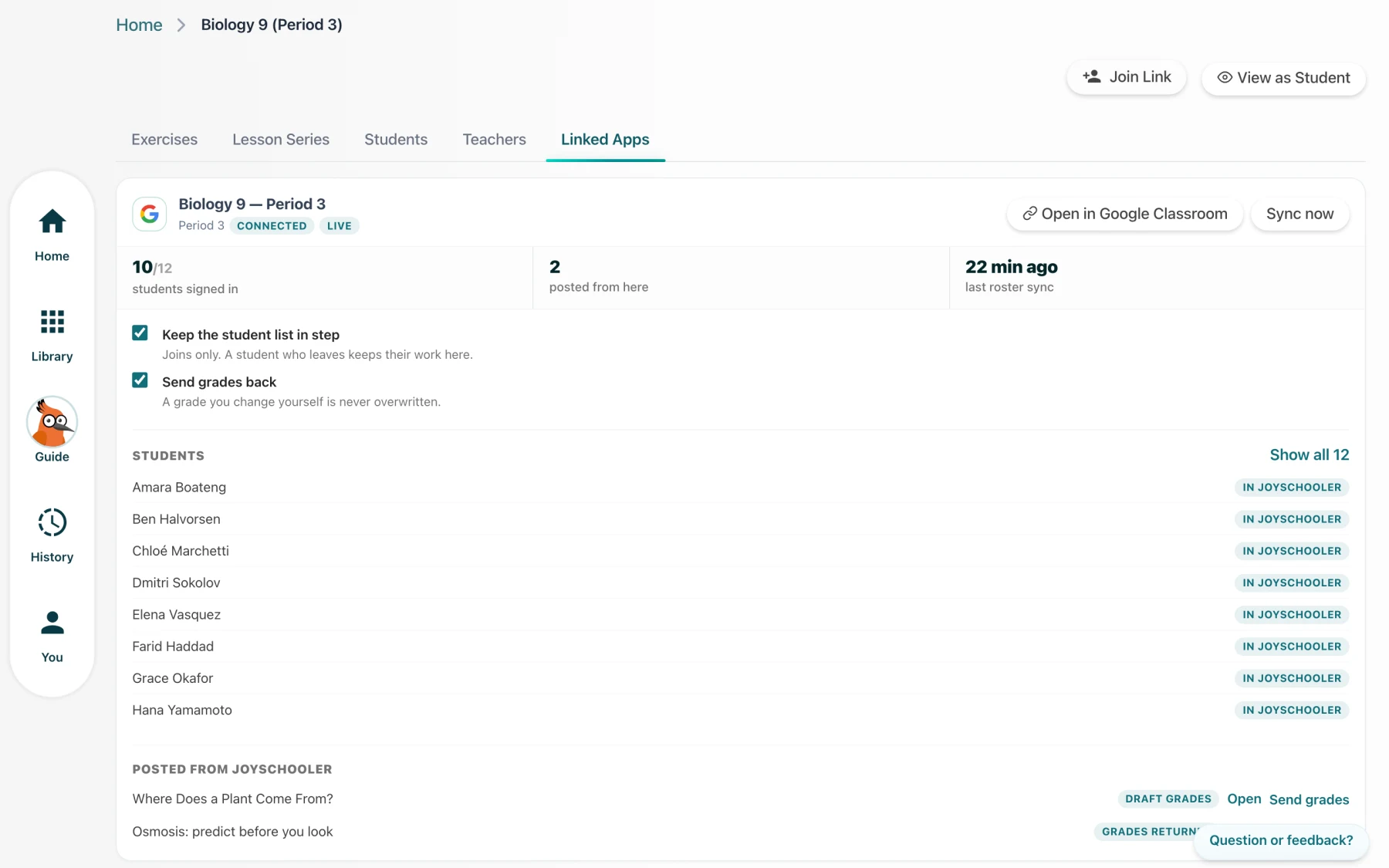
Your students never type a class code.
A learner on that Classroom roster signs in with their school Google account and lands straight in your class, with the work you assigned already waiting. Nobody joins anything. Nobody is left out on Monday because they lost a code.
Assign
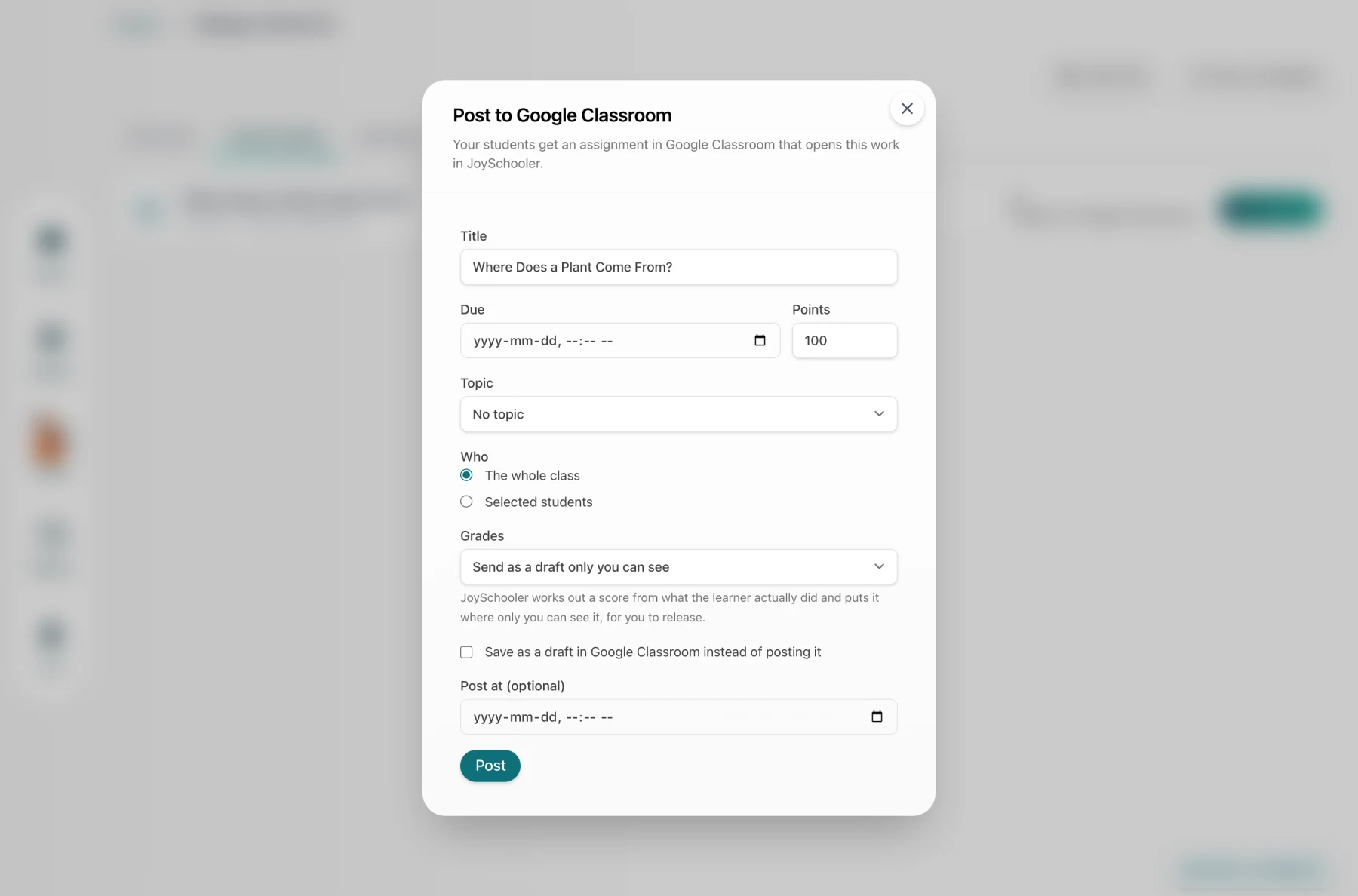
Post it where they already look.
Assign a lesson series and it becomes a Classroom assignment: your title, your due date, your points, your topic — to the whole class or to four named students. The link opens the work.
Grades
And the marks find their way home.
When a learner finishes, the conversation is assessed and the score arrives in your Classroom gradebook — as a draft only you can see, until you release it. If you change a grade by hand, JoySchooler never touches it again.
Watch it happen
The whole thing, in under a minute.
Fifty seconds, start to finish: connect, import, and the class that fills itself.
Only here
It runs inside Classroom itself.
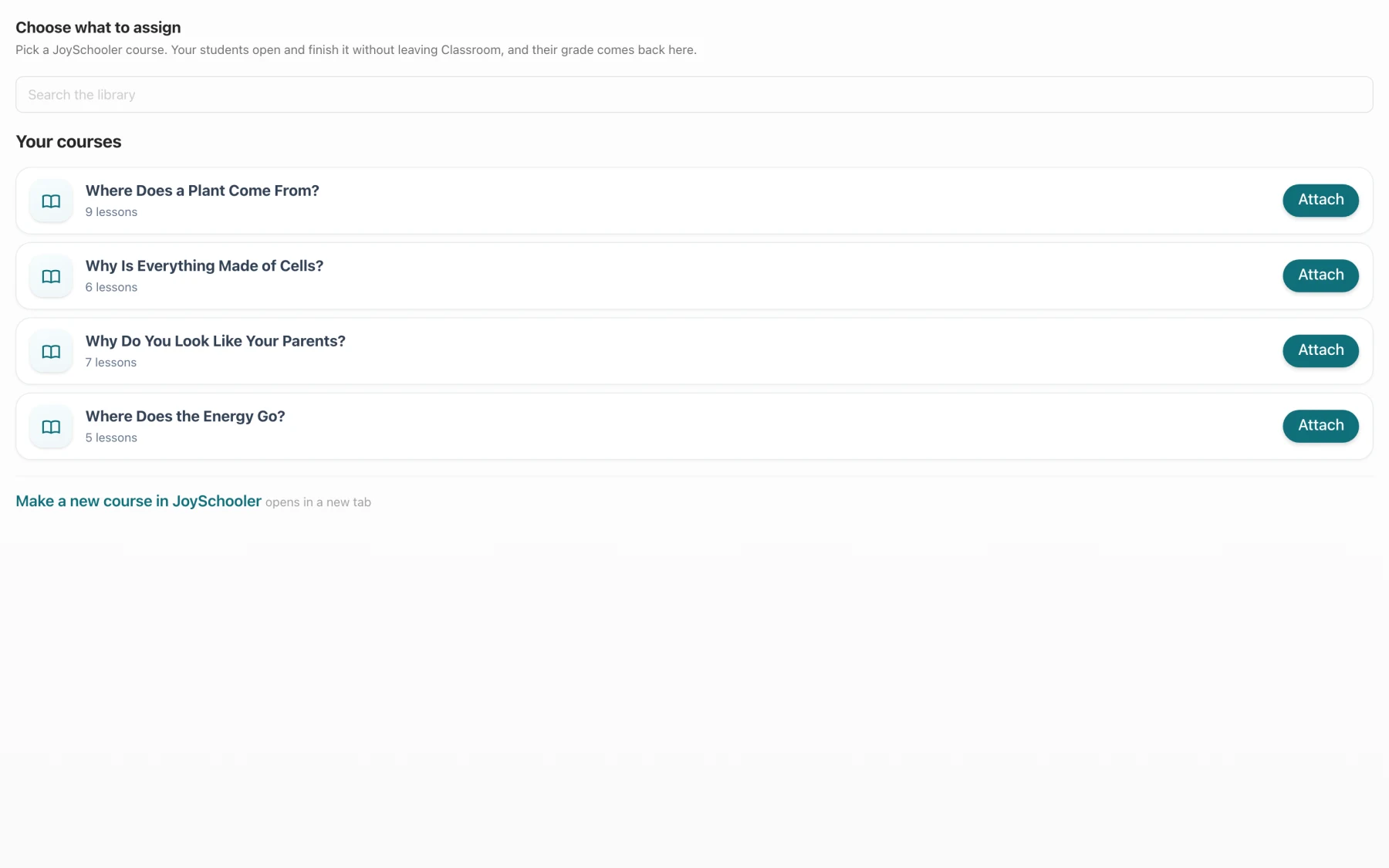
The Classroom add-on puts JoySchooler in the assignment: students do the work without leaving the page, and you read what they wrote in the same place you were already marking. It is the only one of the three where nobody leaves the LMS at all.
Everything it does
The whole list, including what it cannot do.
These are the same capability flags the product itself reads. If one is off here, the control for it is not shown in JoySchooler either — a form that offers something the LMS cannot honour is worse than one that offers less.
Bring your classes in
Pick the sections you teach and JoySchooler makes a class for each one.
Bring your students in
The roster arrives with them. No class codes, no spreadsheet, no typing names.
Students just sign in
A learner signs in with the address their school already gave them and lands in your class with their work waiting.
Post work from JoySchooler
Assign a lesson series here and it appears as an assignment there, with a link that opens the work.
Assign from inside your LMS
Add JoySchooler to a module or an assignment without leaving the page you were already on.
Grades come back on their own
A finished conversation is assessed, and the score lands in your gradebook column.
Release grades to students
Choose whether a score is visible to the learner or held until you say so.
Grades only you can see
A score written where the learner cannot see it until you release it.
See who has turned in
Finished, in progress, not started — per learner, next to their score.
Put it in the right place
Choose the topic or module the assignment belongs to.
Assign to named students
Give a lesson series to four learners rather than to the whole class.
Save it as a draft
Set the assignment up now and publish it when you are ready.
Post it at a set time
Write it tonight, let it appear at nine tomorrow.
Live roster updates
A student added to your class shows up here within seconds, not at the next sync.
Survives a course copy
Copy last year's course and every JoySchooler assignment comes with it — clean, with none of last year's attempts or grades.
Runs inside the LMS
Students do the work without leaving the page. You review it there too.
Worth knowing
What we would tell you on the phone.
- Classroom has no notion of a course copy, so a duplicated course does not carry its JoySchooler assignments across. Canvas and Schoology do.
- Assignments in Classroom cannot change who they are for after they are posted, so changing the audience replaces the assignment. JoySchooler warns you before it does.
For whoever runs your systems
Everything your IT person needs, on one page.
You press Connect and approve the Google permission screen. That is the whole thing. The setup guide has the exact screens, the exact values to paste, every permission we ask for and why, what we store, and the four things that go wrong.
Side by side
If your school runs more than one.
| Capability | Classroom | Canvas | Schoology |
|---|---|---|---|
| Bring your classes in | Yes | Yes | Yes |
| Bring your students in | Yes | Yes | Yes |
| Students just sign in | Yes | Yes | Yes |
| Post work from JoySchooler | Yes | Yes | Yes |
| Assign from inside your LMS | No | Yes | Yes |
| Grades come back on their own | Yes | Yes | Yes |
| Release grades to students | Yes | Yes | Yes |
| Grades only you can see | Yes | No | No |
| See who has turned in | Yes | Yes | Yes |
| Put it in the right place | Yes | Yes | Yes |
| Assign to named students | Yes | Yes | Yes |
| Save it as a draft | Yes | Yes | No |
| Post it at a set time | Yes | No | No |
| Live roster updates | Yes | No | No |
| Survives a course copy | No | Yes | Yes |
| Runs inside the LMS | Yes | No | No |
Questions
The ones teachers actually ask.
- Do I need my IT department?
- Usually not — you connect your own account. Some districts turn off third-party Google apps by default; if the consent screen refuses, your Workspace admin allowlists JoySchooler once and every teacher can connect after that. The setup page has what to send them.
- What happens to a student who leaves my Classroom section?
- They stay in your JoySchooler class, because their conversations and assessments hang off it and a parent may still be able to see them. The change is recorded in the activity log and you remove them deliberately.
- Will it overwrite a grade I typed myself?
- No, and this is a rule rather than a setting. If the grade in Classroom differs from the one JoySchooler last wrote — including a grade you set before JoySchooler ever synced — that submission is yours permanently and JoySchooler stops writing to it.
- Can I keep the grades private while I look at them?
- Yes. Classroom is the only one of the three with a real teacher-only draft grade, so JoySchooler can put a score where only you can see it and leave releasing it to you.
- Does disconnecting delete anything?
- No. Your classes, conversations and assessments stay exactly where they are; rosters and grades simply stop syncing. Reconnecting picks up the same links again.
Your classes are already there. Bring them across.
Every lesson is a one-to-one Socratic conversation: JoySchooler asks the questions, the learner does the reasoning, and you read how they got there.