Setup guide
Set up JoySchooler in Canvas
JoySchooler is a standard LTI 1.3 tool. You create one Developer Key from a JSON URL, turn it on, and tell JoySchooler four values that Canvas shows you. There is no per-teacher OAuth, no stored password for your Canvas, and no long-lived credential of yours on our side at all.
- Who does this
- For a Canvas administrator
- How long
- About fifteen minutes, once per Canvas instance
- Protocol
- LTI 1.3 + LTI Advantage (NRPS, AGS, Deep Linking)
The values
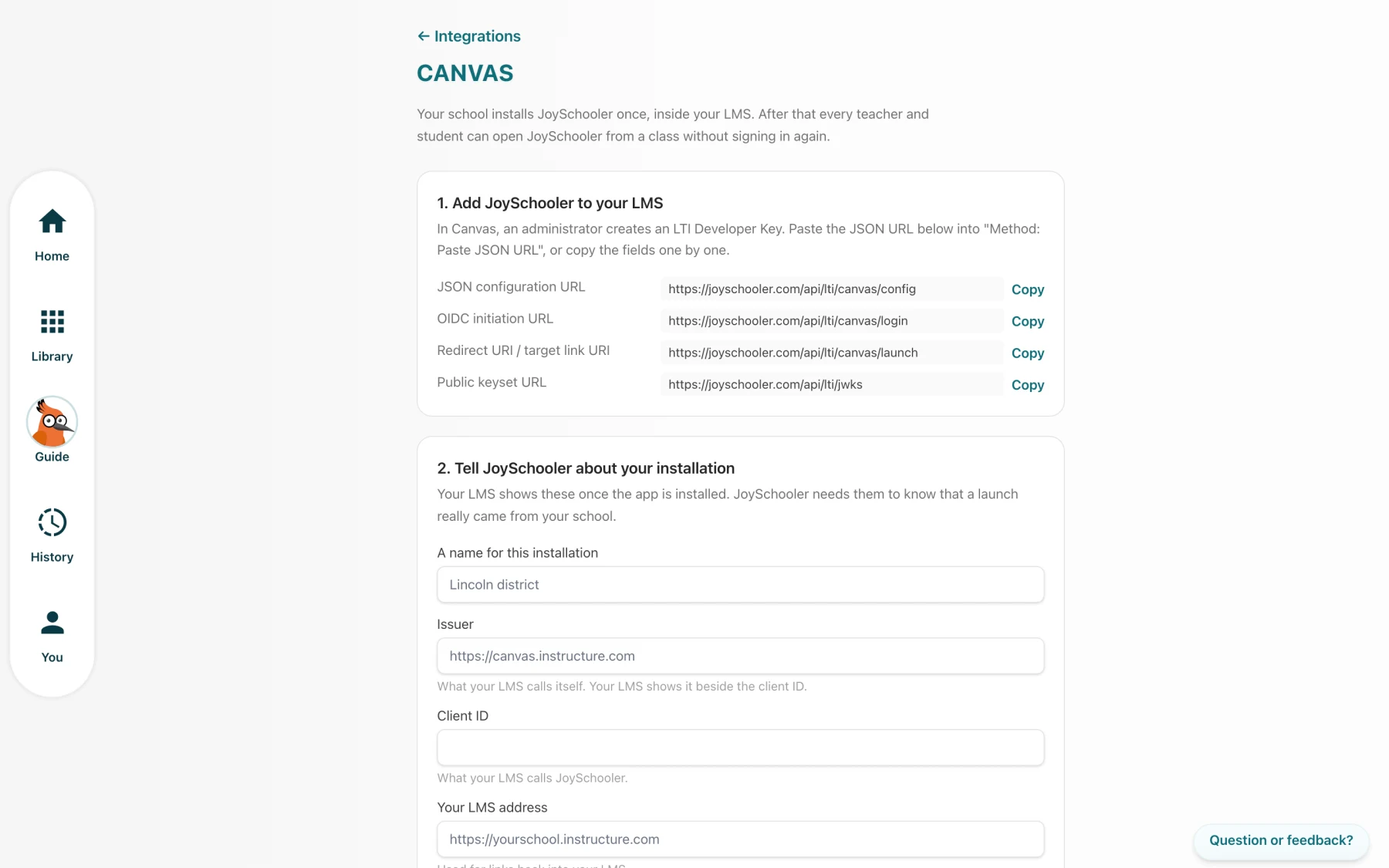
These are the same values JoySchooler shows on its own setup screen, so you can start from either end. They are public by design — none of them is a secret.
- JSON configuration URL
https://joyschooler.com/api/lti/canvas/configPaste this into "Method: Paste JSON URL". Everything else follows from it.
- OIDC initiation URL
https://joyschooler.com/api/lti/canvas/login - Redirect URI / target link URI
https://joyschooler.com/api/lti/canvas/launch - Public keyset URL
https://joyschooler.com/api/lti/jwks - Issuer (Instructure-hosted)
https://canvas.instructure.com - Authorization endpoint (Instructure-hosted)
https://sso.canvaslms.com/api/lti/authorize_redirect - Token endpoint (Instructure-hosted)
https://sso.canvaslms.com/login/oauth2/token - Platform keyset (Instructure-hosted)
https://sso.canvaslms.com/api/lti/security/jwks
Step by step
- 1
Create the LTI key
Canvas admin- Admin → Developer Keys → + Developer Key → + LTI Key.
- Set Method to "Paste JSON URL" and paste the JSON configuration URL below. Canvas fetches the whole configuration — title, placements, scopes and our public keyset — for itself.
- Save, then switch the key ON in the list. Copy the Client ID (the number in the Details column).
- 2
Install it in the account
Canvas admin- Settings → Apps → View App Configurations → + App.
- Configuration Type: "By Client ID". Paste the Client ID and submit.
- Install at the root account so every sub-account and course inherits it. A sub-account install works but scopes the tool to that sub-account.
- 3
Tell JoySchooler about the installation
School admin, in JoySchooler- In JoySchooler: Account settings → Integrations → Set it up beside Canvas.
- Fill in the Issuer, the Client ID from step 1, and your Canvas address. The authorization, token and keyset URLs are pre-filled with Instructure's hosted values — change them only if you are self-hosted.
- Press Check to verify the registration against your Canvas before anyone tries a launch.
- 4
Optional: the REST developer key
Canvas admin- Only needed if teachers should be able to list their Canvas courses from inside JoySchooler and create assignments from there, instead of adding JoySchooler from inside Canvas.
- Create a second, API Developer Key with a client secret. Scopes: courses read, assignments read/write, and sections read.
- Paste the id and secret on the same JoySchooler setup page. It is stored write-only; the page shows whether a key is present, never its value.
- Nothing that the product promises depends on this. Without it teachers add JoySchooler from inside Canvas, which is where they already are.
Every permission we ask for, and why
This is the complete list. A consent screen naming capabilities a product does not use is how integrations get refused by district administrators — so JoySchooler asks for the shortest set that works, and nothing else.
| Scope | What it is for |
|---|---|
lti-ags/scope/lineitem | Create and manage the gradebook column for a JoySchooler assignment. |
lti-ags/scope/lineitem.readonly | Find the column Canvas already made for a deep-linked item, instead of making a second one. |
lti-ags/scope/result.readonly | Read the grade Canvas currently holds, so a mark a teacher typed is never overwritten. |
lti-ags/scope/score | Write a learner's score into that column. |
lti-nrps/scope/contextmembership.readonly | Read the roster of a course JoySchooler has been launched from. |
What we store, and what we never touch
That list is the whole ask. There is no scope for your other courses, your other assignments, your users directory or your files — a consent screen listing capabilities the product does not use is how integrations get refused, and rightly.
JoySchooler stores no password, API key or refresh token for your Canvas. Every service call is authorised by a token it signs with its own key and exchanges at your token endpoint; the token lives one hour.
A learner's identity is the pair (your issuer, their LTI subject) — never their email address. Two districts on Canvas Cloud share an issuer but never share a subject namespace, and an address is used at most once, to match an account that already exists.
Our public keyset is served from one URL for every region. A key that stops signing stays published until platforms' caches have turned over, which is why you will sometimes see two keys there.
JoySchooler pages open inside Canvas in an iframe. Nothing inside those frames is authorised by an ambient cookie: the session comes from a one-time code bound to the signed launch, and every read is checked server-side against the class.
Our privacy policy and terms cover the rest: Privacy policy · Terms of service
When it does not work
Written from the failures that actually happen, with what each one really means rather than what it looks like.
- The JoySchooler frame is blank inside Canvas.
- Almost always the browser refusing to frame the page. Check the console for a frame-ancestors or X-Frame-Options message and send it to us — it is a server header, not something you can fix in Canvas.
- "JoySchooler is not set up for this Canvas installation yet."
- The launch arrived with an issuer and client id JoySchooler has no registration for. Step 3 has not been done, or the Client ID was pasted with a typo. The message names the issuer it saw.
- A student sees "your teacher has not opened this class yet".
- Correct, and deliberate. A JoySchooler class needs an owner and a school, and a learner has neither to give it — so the class is created by the first teacher launch. Ask the teacher to open it once.
- Grades do not sync for one assignment.
- Either the install was not granted the score scope — the class page says so explicitly rather than failing at the first write — or a teacher has edited that grade, which permanently hands the submission to them.
- A copied course opens the old course's assignment.
- It should not, and cannot: the copied item carries a key that is checked against the launch's own course. A copy gets a fresh assignment instance with none of the previous cohort's work.
Stuck on any of it?
Send us what your LMS said — the exact message, and the issuer or client id if there is one. Setup problems are nearly always a single value, and naming it is usually the whole fix.