Setup guide
Set up JoySchooler in Google Classroom
Google Classroom is the one integration a teacher can turn on alone. JoySchooler holds that teacher's own Google authorisation and acts as them — which is why coursework it creates appears under their name. There is nothing to install district-wide unless your Workspace blocks unapproved apps.
- Who does this
- For teachers — and for a Workspace admin, only if your district blocks third-party apps
- How long
- A minute for a teacher; ten for an admin allowlist
- Protocol
- Google OAuth 2.0
The values
These are the same values JoySchooler shows on its own setup screen, so you can start from either end. They are public by design — none of them is a secret.
- Redirect URI registered with Google
https://joyschooler.com/api/lms/google-classroom/callback - Add-on frame origin
https://joyschooler.com/lms/addon/
Step by step
- 1
A teacher connects their own account
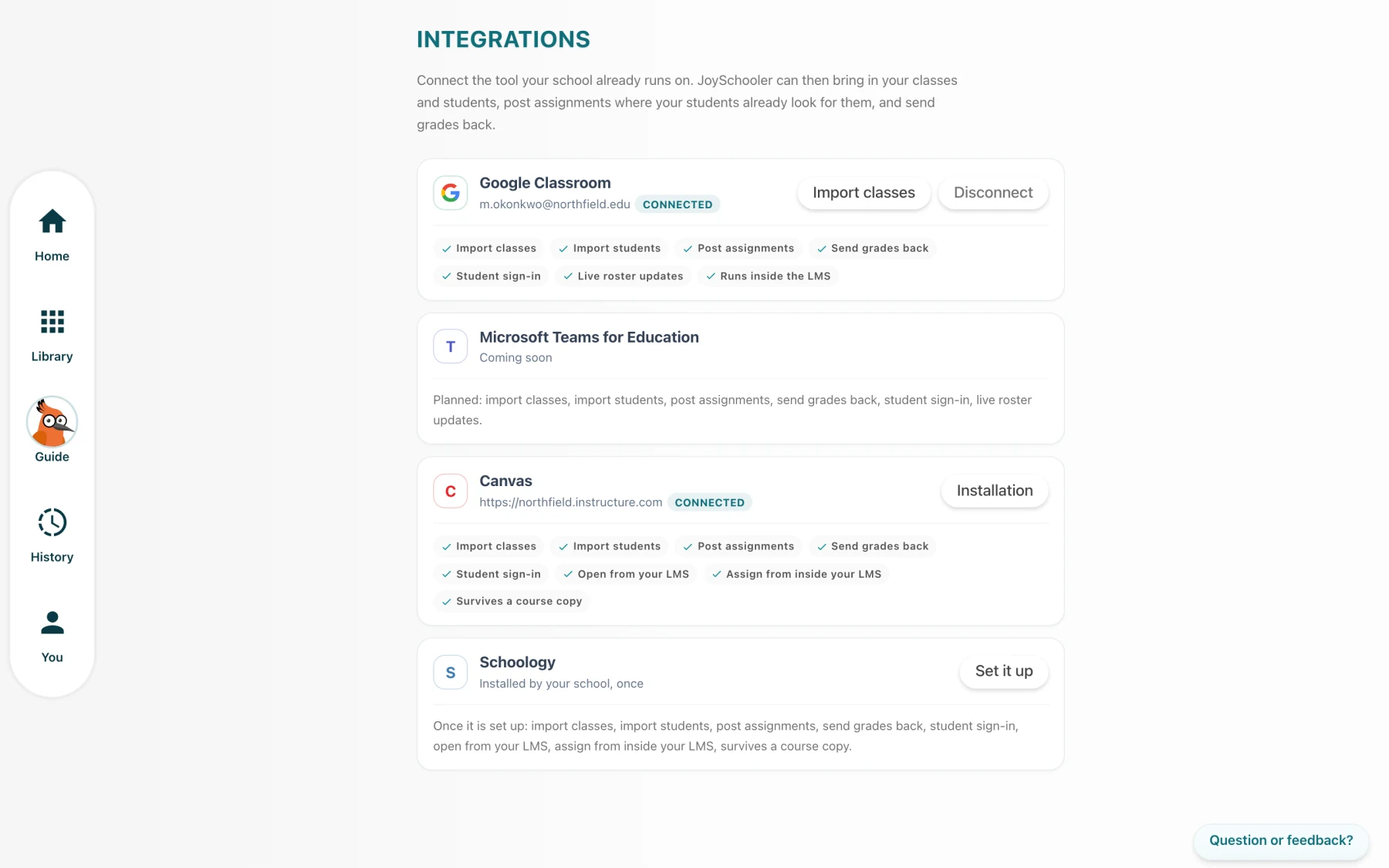
Teacher- In JoySchooler: Account settings → Integrations → Connect beside Google Classroom.
- Google shows a consent screen listing exactly what is being asked for. Approving it returns you to JoySchooler with the connection live.
- Nothing is imported at this point. The next screen asks which of your courses to bring in.
- 2
If the consent screen refuses
Google Workspace admin- A district that has set "Third-party app access" to blocked-by-default will refuse the consent screen with an administrator message.
- In the Google Admin console: Security → Access and data control → API controls → Manage third-party app access.
- Add JoySchooler as a Configured app and set it to Trusted for the OUs whose teachers should use it. The OAuth client id is on this page below.
- Teachers can connect immediately after that; nothing on the JoySchooler side changes.
- 3
Optional: the Classroom add-on
Google Workspace admin- The add-on is what lets students do the work inside the Classroom assignment rather than following a link out.
- It is installed from the Google Workspace Marketplace for the domain, the same as any other Classroom add-on.
- Teachers and students are asked for different permissions when they first open a frame: a learner is never asked for roster or coursework access.
Every permission we ask for, and why
This is the complete list. A consent screen naming capabilities a product does not use is how integrations get refused by district administrators — so JoySchooler asks for the shortest set that works, and nothing else.
| Scope | What it is for |
|---|---|
classroom.courses.readonly | List the courses this teacher teaches, so they can pick the ones to import. |
classroom.rosters.readonly | Read the student list of the courses they chose. |
classroom.profile.emails | Match a learner to their JoySchooler account by address. This is what removes the class code. |
classroom.coursework.students | Create the assignments JoySchooler posts, and read and write grades on them. |
classroom.topics | Offer the teacher their own topic list when posting. |
classroom.push-notifications | Optional. Live roster and coursework updates rather than an hourly sweep. |
classroom.addons.teacher / .student | Optional, and only for the add-on. Teachers and students are asked separately. |
What we store, and what we never touch
JoySchooler never reads coursework it did not create, and never deletes anything it did not create.
A roster sync only ever ADDS class membership. A learner who leaves a Classroom section keeps their JoySchooler place — their work and their parent's view of it hang off it — and the departure is recorded in the class activity log for a teacher to act on.
Importing a class does NOT create accounts for children. Each roster row is a seat that waits for its person; an account exists only once that learner signs in themselves.
The teacher's Google refresh token is stored as AES-256-GCM ciphertext under a key held in Google Secret Manager, never in the database row.
Our privacy policy and terms cover the rest: Privacy policy · Terms of service
When it does not work
Written from the failures that actually happen, with what each one really means rather than what it looks like.
- The integration works, then stops after about an hour, once.
- Google issues a refresh token only when the consent screen is forced. JoySchooler forces it and refuses a connection that comes back without one, so this should not happen — if it does, disconnect and reconnect.
- "JoySchooler is not allowed to do that" on a class you do own.
- Classroom returns the same code for "not permitted" and "your grant no longer covers this". JoySchooler separates them; a genuine permission problem is usually a co-teacher who owns the coursework.
- Live updates are on and nothing ever arrives.
- Push registrations expire in about a week and are renewed nightly. If a connection lapsed in between, the hourly sweep still carries everything; reconnecting re-registers.
- Grades are not appearing in the gradebook.
- Check the assignment's grade setting in the class Linked apps tab. A submission a teacher has graded by hand is deliberately never overwritten, and shows as skipped with that reason.
Stuck on any of it?
Send us what your LMS said — the exact message, and the issuer or client id if there is one. Setup problems are nearly always a single value, and naming it is usually the whole fix.