Setup guide
Set up JoySchooler in Schoology
JoySchooler installs as a standard LTI 1.3 app. Install it at the ORGANISATION level: a course-level install works, but Schoology then issues each course its own deployment id, so the same tool appears as many separate installations and nothing is shared between them.
- Who does this
- For a Schoology System Administrator
- How long
- About fifteen minutes, once for the organisation
- Protocol
- LTI 1.3 + LTI Advantage (NRPS, AGS, Deep Linking)
The values
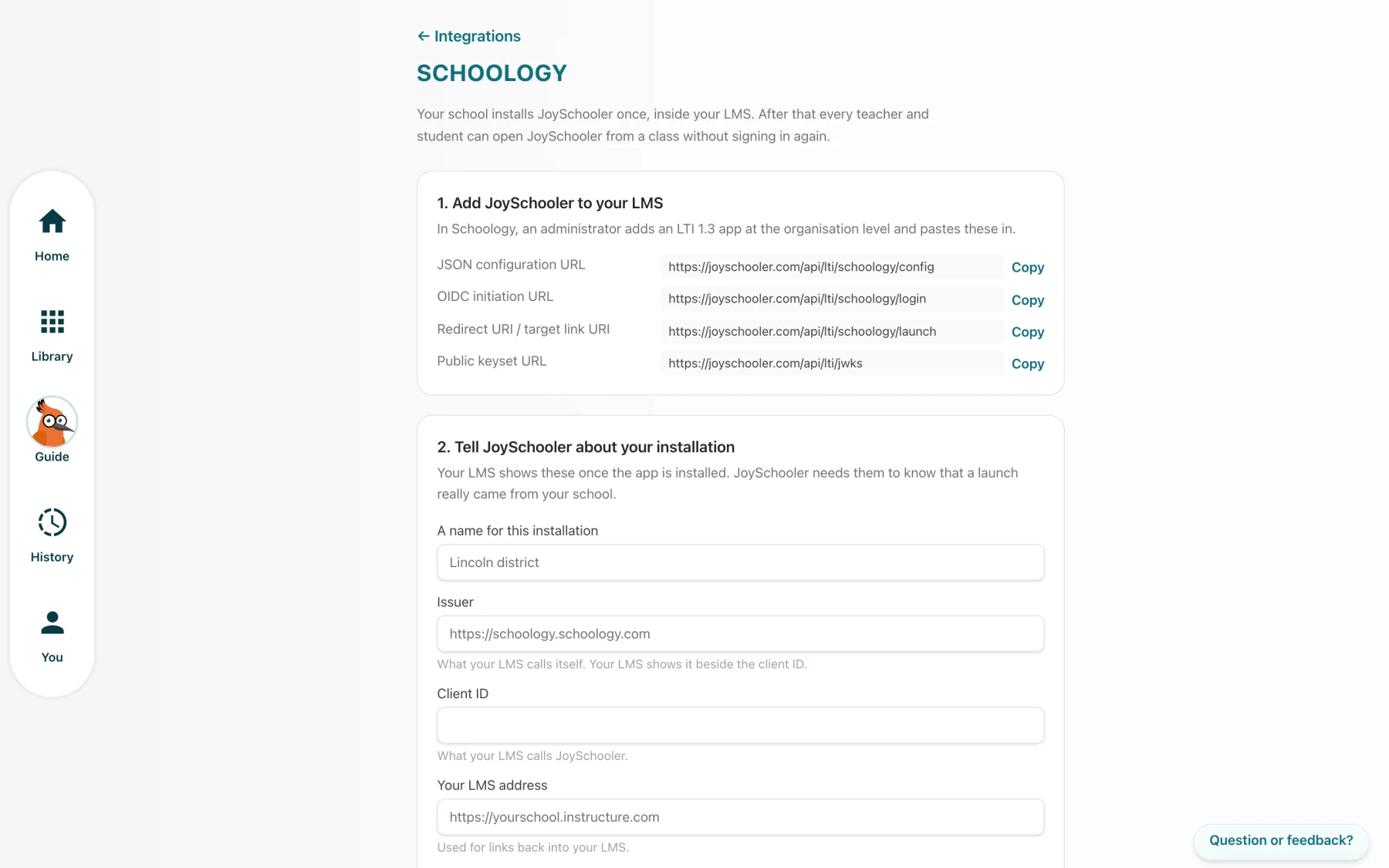
These are the same values JoySchooler shows on its own setup screen, so you can start from either end. They are public by design — none of them is a secret.
- OIDC initiation URL
https://joyschooler.com/api/lti/schoology/login - Redirect URI / target link URI
https://joyschooler.com/api/lti/schoology/launch - Public keyset URL
https://joyschooler.com/api/lti/jwks - JSON configuration URL
https://joyschooler.com/api/lti/schoology/configFor reference, or for any platform that fetches its configuration.
- Issuer
https://schoology.schoology.com - Authorization endpoint
https://lti-service.svc.schoology.com/lti-service/authorize-redirect - Token endpoint
https://lti-service.svc.schoology.com/lti-service/access-token - Platform keyset
https://lti-service.svc.schoology.com/lti-service/.well-known/jwks
Step by step
- 1
Add the LTI 1.3 app
Schoology System Admin- School Management → Integration → LTI 1.3 Apps → + Add LTI 1.3 App → Add App.
- Give it a name (JoySchooler) and paste the OIDC initiation URL, the redirect URI and the public keyset URL from the list below.
- Set Privacy to "Send Name and Email/Username of user who launches the tool" — without the email a learner cannot be matched to their account and will be asked to sign in once.
- Save. Schoology issues a Client ID.
- 2
Install it for the organisation
Schoology System Admin- From the app's row choose Install LTI 1.3 App, then Add to Organization.
- Confirm the placements you want it in — at minimum course materials and the assignment picker.
- 3
Tell JoySchooler about the installation
School admin, in JoySchooler- In JoySchooler: Account settings → Integrations → Set it up beside Schoology.
- Enter the Issuer and the Client ID Schoology issued. The authorization, token and keyset URLs are pre-filled with Schoology's.
- Press Check to verify the registration before a teacher tries it.
- 4
Optional: the institution REST key
Schoology System Admin- Only needed if teachers should list Schoology courses from inside JoySchooler and create assignments from there.
- School Management → Integration → API. Generate a key and secret for the institution.
- Paste them on the JoySchooler setup page. This is an institution credential, used with Schoology's run-as header, which is exactly why it is an administrator's decision and not a teacher's.
Every permission we ask for, and why
This is the complete list. A consent screen naming capabilities a product does not use is how integrations get refused by district administrators — so JoySchooler asks for the shortest set that works, and nothing else.
| Scope | What it is for |
|---|---|
lti-ags/scope/lineitem | Create and manage the gradebook column for a JoySchooler item. |
lti-ags/scope/lineitem.readonly | Reuse the column Schoology already made rather than adding a second. |
lti-ags/scope/result.readonly | Read the grade Schoology holds, so a teacher's own mark is never overwritten. |
lti-ags/scope/score | Write a learner's score. |
lti-nrps/scope/contextmembership.readonly | Read the roster of a section JoySchooler was launched from. |
What we store, and what we never touch
That is the entire scope list. Nothing about your other courses, your directory, or your files.
No password or API key for your Schoology is stored for the LTI half — there is nothing to store. Each service call is authorised by a short-lived token JoySchooler signs for itself.
A JoySchooler class maps to a SECTION, not a course, because a Schoology course can hold several sections with different teachers and different children.
Identity is (issuer, LTI subject). An email address is used at most once, to match an account that already exists, and never as the key.
Schoology reads a date with no timezone as school-local. JoySchooler sends an explicit instant so a due date does not silently move by your offset.
Our privacy policy and terms cover the rest: Privacy policy · Terms of service
When it does not work
Written from the failures that actually happen, with what each one really means rather than what it looks like.
- A blank rectangle where JoySchooler should be.
- The browser refusing to frame the page. The reason is in the browser console as a frame-ancestors or X-Frame-Options message; send it to us.
- Learners are asked to sign in once, every time.
- The app's Privacy setting is not sending the email. Set it to send name and email, and the match becomes silent.
- The same course shows as several installations.
- It was installed at course level rather than organisation level, so Schoology issued a deployment id per course. Reinstall at the organisation.
- "Your teacher has not opened this class yet."
- Deliberate. A class is created by the first TEACHER launch, because a class needs an owner and a school and a learner has neither to give it.
Stuck on any of it?
Send us what your LMS said — the exact message, and the issuer or client id if there is one. Setup problems are nearly always a single value, and naming it is usually the whole fix.